
One of the most common questions I’m asked about preparing content for an accessible PDF is about document structure and specifically the hierarchy of headings or information.
My usual advice is to write or edit text so that it uses sequential heading levels that reflect the structure of the information – and not to skip levels.
In WCAG 2.2, this requirement is covered by success criterion 1.3.1 Info and Relationships (opens in a new tab):
‘The intent of this success criterion is to ensure that information and relationships that are implied by visual or auditory formatting are preserved when the presentation format changes. For example, the presentation format changes when the content is read by a screen reader or when a user style sheet is substituted for the style sheet provided by the author.’
One common source of confusion is what I think of as a ‘phantom’ heading – a section that doesn’t formally exist in the structure, but still influences how the rest of the document is organised.
Visual hierarchy
Sighted users understand the hierarchy of information based on the visual presentation of text – its size, weight (how bold it is), placement (whether it has a page to itself or sits at the top of a new page) and perhaps its colour.
- A two-word phrase, presented in the largest type size in the document, in bold, on a page of its own, in a different colour to the rest of the text, might be reasonably assumed to be a section heading.
- A thirty-word segment in the smallest type size in the document, in standard weight, sitting between other multiple-word segments and presented in the same colour as almost everything else, might be a paragraph.
- A group of thirty-word segments sitting just below a slightly larger, bolder, three-word phrase are likely to be a series of paragraphs which are all related to that heading. This is explained by the Gestalt Principles which you can read about in my post, Design theories: design beyond aesthetics (opens in a new tab).
These cues suggest a hierarchy of information, which helps us understand the document. But they are all visual or spatial in nature.
Maintaining a correlation between the visual presentation of text elements and their place in the information hierarchy helps support understanding and reduces cognitive load for your readers.
In reality, there are situations where this is not feasible.
The key is to understand that the visual appearance of text is often distinct from its place in a hierarchy. And in accessible PDFs, headings are not about visual appearance – they define structure.
Information hierarchy
In an accessible PDF, every piece of text is tagged to identify what it is – whether, for example, it’s a paragraph, a list or a heading. Heading tags are important because they define the document structure, demonstrating the relationship between different parts and grouping the information that follows.
For this reason, screen reader users often navigate by jumping between headings at a particular level to locate information. This is why it is essential to both accurately reflect the document structure via headings and also to place information in the most logical part of the document.
Skipping a heading level upsets this logical structure, making it harder for a screen reader user to understand and navigate the information.
In the current accessibility standards, there is no specific tag for the title of a document, so it is generally tagged as an H1 – the first heading level. Everything that follows nests under this tag in terms of hierarchy.
After the H1, document sections would have an H2 heading – the second heading level. Everything within that section is then associated with that heading in the same way that all the paragraphs in a chapter of a novel are associated with the title of the chapter.
This can continue up to a level six heading.
You can think of this nesting like a department store:
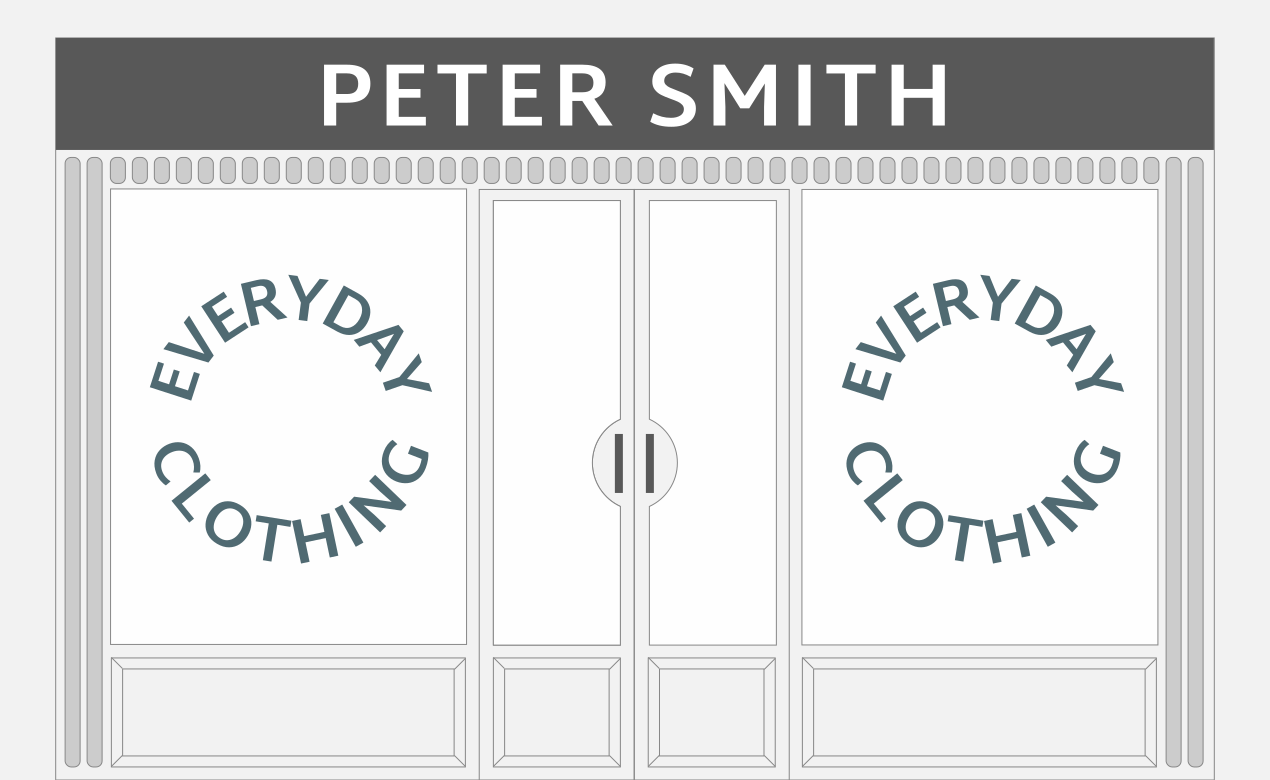
The department store’s name is the H1 – we’ll call it Peter Smiths. Everything you can get from ‘Peter Smiths’ is in the shop.
Inside the shop, there are departments: ladieswear, menswear, homewares, and appliances. They are the H2s. Organising the products in that way makes it really easy for the shopper – if they want men’s trousers, they know to go to menswear, rather than looking everywhere.
Within the menswear department, there are multiple brands. Each of those is an H3. ‘Everyday Clothing’ is in the menswear department, and the menswear department is within the Peter Smith department store. Everything on the ‘Everyday Clothing’ stand belongs to that brand – you wouldn’t expect to find other brands, or unrelated items like homewares or appliances there. Headings work in the same way.
So, we have:
- <H1> Peter Smith
- <H2> Menswear
- <H3> Everyday Clothing
- <H2> Menswear
Where it’s easy to get confused
You know that bit in the entrance to the department store? The display about Peter Smith’s Centenary, or information about their corporate social responsibility activities with a local charity or school? That happens a lot in documents.
Content like ‘Contents’, ‘Welcome from the Chief Executive’, ‘Our vision and mission’ and ‘About our organisation’ often follow directly after the title page.
Visually, these pieces of content often have a page to themselves, with a page heading. And with the structure as it is, they all need to be H2 headings because they sit directly after the H1, and you can’t skip a level.
The problem becomes clear later on, when you have a section opener. Section openers are often designed as a full-page image with large type. This helps create visual impact, visually signpost the beginning of a new section, and allows subsequent headings to have page headings, retaining visual prominence for important content. In terms of hierarchy, section openers feel more important than something like the contents listing. But structurally, they are also H2s because they also sit directly under the H1. And indeed, there is nowhere higher in the hierarchy that they can go – they cannot be H1s.
Content that follows those section openers might have page headings which look identical to the ones used before the section opener, but structurally they are now a level lower (H3s), because they are nested within the H2 section. So, two headings that look identical on the page are actually at different levels in the structure.
Here’s that scenario mapped out:
- <H1> Impact Report 2025
- <H2> Welcome from the Chief Executive
- <H2> Our Vision and Mission
- <H2> About Our Organisation
- <H2> Our Impact This Year
- <H3> Key Highlights
- <H3> Impact at a Glance
What’s really happening is that we’re mentally grouping the frontmatter as a section – but that section doesn’t explicitly exist in the structure. Instead, there’s an unspoken or ‘phantom’ H2 grouping the front matter. If we include it, the ‘Welcome from the Chief Executive’, ‘Our vision and mission’ and ‘About our organisation’ are pushed down to H3. Here’s that scenario mapped out:
- <H1> Impact Report 2025
- <H2> Introduction
- <H3> Welcome from the Chief Executive
- <H3> Our Vision and Mission
- <H3> About Our Organisation
- <H2> Our Impact This Year
- <H3> Key Highlights
- <H3> Impact at a Glance
- <H2> Introduction
Resolving the mismatch
Including the additional section opener, with a full-page image and large type, creates a visual presentation which is consistent with the document structure. But it’s not something that we expect to see. It also uses a whole page, which might not be practical – particularly if the document is also destined for printing.
Remember, the headings in a document are about information structure – not about presentation. So, an alternative solution might be to include that ‘Introduction’ heading at H2 level, but not to present it in the same way as subsequent section openers.
Once you understand how headings define structure, you can make better decisions about how content is organised, creating documents which are a lot more logical for everyone – whether they visually understand the implied structure because of what we are accustomed to seeing or whether they rely on that structure being made explicit in order to navigate an aural equivalent of the same information.
Related posts

 Recent posts
- Accessible PDF heading structure and the problem of phantom headings
- Accessible colour contrast for text
- How we can work together on accessible PDFs
- Acronyms & initialisms
- The best fonts for accessibility
Featured posts
Briefing a designer
Eight reasons to use freelance creatives

Putting a freelance designer at the heart of your project

Hello! I’m Sarah, an independent typographic designer.
I’ve been sharing my knowledge about design, typography, marketing, branding and printing since 2014. I hope you enjoy reading my blog.

Sarah Cowan